Last reviewed: October 28, 2026
SUMMARY:
- Microsoft Purview Information Protection gives you one set of sensitivity labels that works in Outlook, Office files, SharePoint, Teams, Fabric, Power BI and Copilot.
- The label travels inside files and follows data into Power BI and back out to Excel. It doesn’t follow data copied into a Fabric lakehouse.
- Manual labeling comes with Microsoft 365 E3. Automatic labeling across email and files needs an E5-level license.
- The security team owns the labels. The data team owns labeling in Fabric. Both must agree on the label set before either rolls it out.
- Roll out in order: agree, switch on, set defaults, automate, then enforce with DLP and protection policies.
Table of Contents
- What Is Microsoft Purview Information Protection?
- How One Sensitivity Label Travels From Email to Lakehouse
- Where Microsoft Purview Information Protection Hands Off Between Microsoft 365 and Fabric
- Who Owns the Labels: Security Team, Data Team or Both?
- How to Roll Out Microsoft Purview Information Protection Across Microsoft 365 and Fabric
- When One Label Set Isn’t the Right Starting Point
What Is Microsoft Purview Information Protection?
Microsoft Purview Information Protection is the part of Microsoft Purview that finds, classifies and protects sensitive data wherever it lives or travels (Microsoft Learn). Microsoft Purview is Microsoft’s data security and governance product. Information Protection used to be called Microsoft Information Protection.
Its main tool is the sensitivity label. A sensitivity label is a tag, such as “Confidential,” that says how sensitive an item is and how it should be handled. You create labels once, in the Microsoft Purview portal. You publish them to people and groups. Then the same labels show up in every app and service that supports them.
That list is longer than most people expect. One label set covers:
- Outlook email and meeting invites
- Word, Excel and PowerPoint files, on the desktop and on the web
- Teams, Microsoft 365 groups and SharePoint sites
- Fabric items, such as lakehouses and warehouses, and Power BI reports
- Microsoft 365 Copilot, which reads and respects the labels
A label on a file or email can do three things. It can mark content with a header, footer or watermark. It can encrypt content, so only the people the label allows can open it. And it can simply tell people and other tools how sensitive the data is (Microsoft Learn).
The label lives in the file’s metadata, in clear text. So it stays with the file wherever you save it, and other tools can read it.
What it costs. Manual labeling is included in Microsoft 365 E3, Office 365 E3 and Microsoft 365 Business Premium. Automatic labeling of files and email needs more. Plan on Microsoft 365 E5, Office 365 E5, or an E5 Information Protection and Governance add-on (Microsoft Purview service description). Anyone who labels Power BI items also needs a Power BI Pro or Premium Per User license, and Office 365 E3 doesn’t cover Power BI labeling (Microsoft Learn).
How One Sensitivity Label Travels From Email to Lakehouse
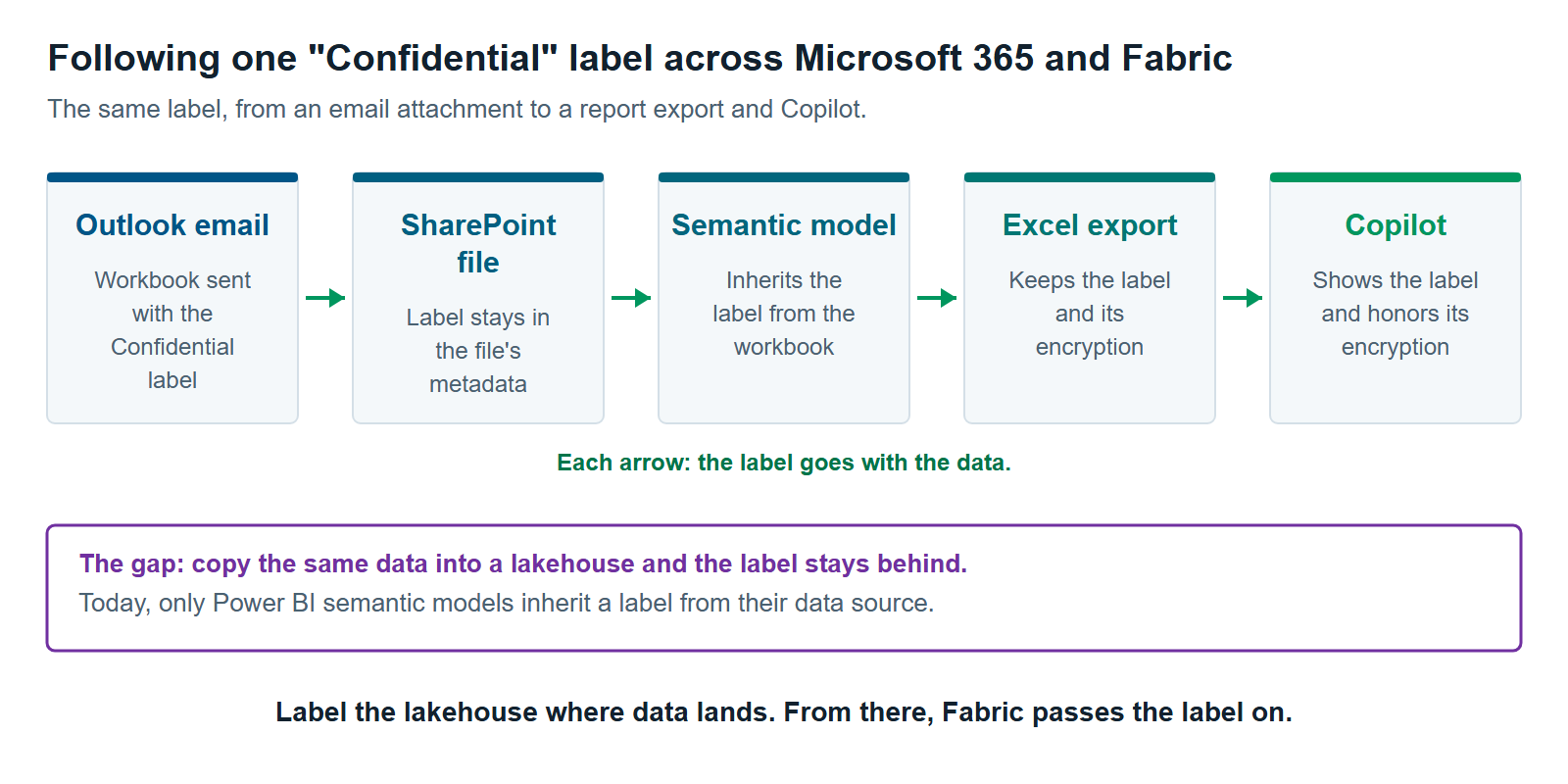
Once a few admin settings are on, a sensitivity label follows data across Microsoft 365 and into Power BI. It stops at one handoff: data copied into a Fabric lakehouse. Here is one “Confidential” label on a finance workbook, step by step.
1. Outlook. A finance manager emails a forecast workbook labeled “Confidential.” The label is stored inside the file, so it goes wherever the attachment goes. If the label encrypts, only people the label allows can open it.
2. SharePoint. The recipient saves the workbook to a SharePoint site. The label stays with it. SharePoint can now search the file, and data loss prevention can check it. Data loss prevention (DLP) is the Purview feature that spots and blocks risky sharing. One condition applies: an admin must first turn on sensitivity labels for SharePoint and OneDrive. Until then, SharePoint can’t open encrypted files for search, co-authoring or DLP (Microsoft Learn).
3. Power BI semantic model. An analyst builds a Power BI semantic model on the workbook. A semantic model is the layer of tables and measures that reports are built on. It inherits “Confidential” from the Excel file automatically, if the model connects through the web connector in Import mode. Fabric then passes the label down to the reports built on it.
4. Excel export. A manager exports a report to Excel. The new file carries “Confidential” and its encryption back into Microsoft 365 (Microsoft Learn).
5. Copilot. Someone asks Microsoft 365 Copilot about the forecast. Copilot shows the label in its answer. If the label encrypts, Copilot returns the content only to people allowed to copy from the file. When Copilot writes a new document from labeled files, the new document takes the highest-priority label of the files it used (Microsoft Learn).
Now the gap. Say a data engineer loads the same forecast into a Fabric lakehouse with a pipeline. The lakehouse doesn’t pick up “Confidential.” In Fabric, only Power BI semantic models inherit a label from their data source today. The lakehouse keeps the label it got when it was created, often the default label, or one someone applies by hand.
Where Microsoft Purview Information Protection Hands Off Between Microsoft 365 and Fabric
Microsoft Purview Information Protection hands a label across the Microsoft 365 and Fabric boundary in some directions but not others. Into Power BI, inheritance works for a few sources. Out of Power BI, supported exports keep the label. Into a lakehouse, nothing carries over. The table shows each crossing.
| Crossing | Does the label go with the data? |
|---|---|
| Excel on OneDrive or SharePoint → Power BI semantic model | Yes, if the model uses Import mode and an admin turns on inheritance from data sources |
| Excel stored locally or behind a gateway → semantic model | No |
| Any file or database outside Fabric → Fabric lakehouse or warehouse | No. Use a default label or label it by hand |
| Power BI report → Excel, PDF or PowerPoint export | Yes, with its encryption |
| Power BI report → CSV export | No. The file leaves unlabeled |
| Labeled Teams team or SharePoint site → the files inside it | No. A site label protects the site, not each file |
Sources: inheritance from data sources, information protection in Fabric, and sensitivity labels for teams, groups and sites (Microsoft Learn).
The last row surprises many teams. A label on a SharePoint site controls things like guest access and sharing. It doesn’t label the files stored there. So Copilot won’t show the site’s label next to content from that site (Microsoft Learn). If you want the files labeled, set a default label on the document library or use automatic labeling; both need an E5-level license.
DLP is the one control that reads labels on both sides. A DLP policy can use a sensitivity label as its condition in email, SharePoint, OneDrive and devices. It can do the same for Microsoft 365 Copilot, and for Fabric and Power BI workspaces (Microsoft Learn). One label, such as “Highly Confidential,” can then drive DLP rules in email, files, Copilot and Fabric.
For how labels move between items inside Fabric, read Sensitivity Labels in Microsoft Fabric: How Inheritance Really Works. For DLP inside Fabric, read Purview DLP for Fabric: Policy Tips, Restrict Access and What It Won’t Catch.
Who Owns the Labels: Security Team, Data Team or Both?
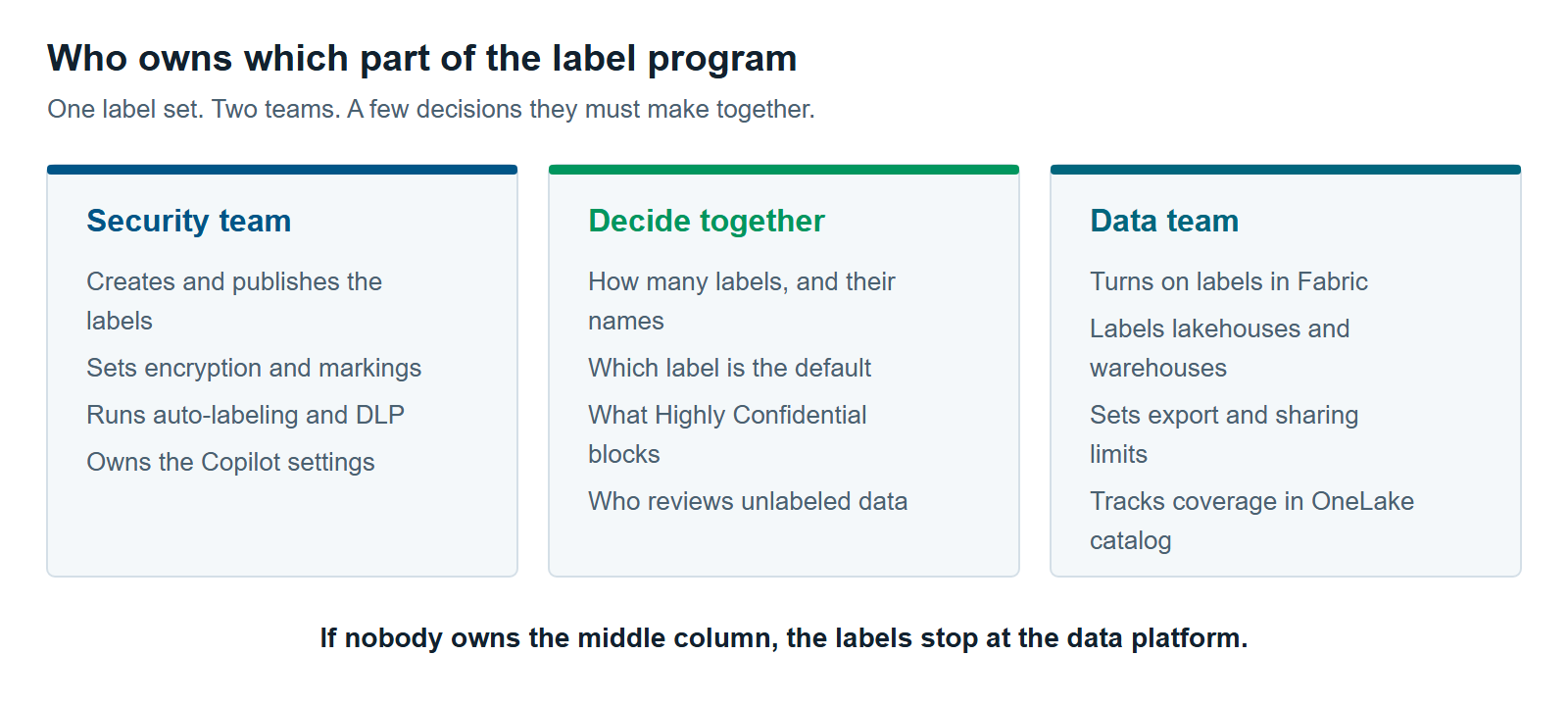
Both teams own the labels, but they own different parts. The security team creates the labels and the rules behind them. The data team applies them in Fabric. A few decisions belong to both, and those are the ones that get skipped.
The security or compliance team usually runs Microsoft Purview. They create the labels, set encryption and markings, and run automatic labeling and DLP. They also own the Copilot settings. Their tools live in the Microsoft Purview portal.
The data team runs Fabric. A Fabric admin turns on labels in the Fabric tenant settings. The data team labels lakehouses and warehouses, sets export limits, and tracks coverage in the OneLake catalog. The OneLake catalog is Fabric’s built-in catalog, and it shows which items are labeled and which aren’t (Microsoft Learn).
Four decisions in the middle need both teams in the room.
- How many labels, and what they’re called. Microsoft notes that labeling works less well when people see more than five main labels (Microsoft Learn).
- Which label is the default. A default label that encrypts can break sharing with partners.
- What the top label blocks. “Highly Confidential” should mean the same thing in an email and a lakehouse.
- Who fixes unlabeled data. Someone has to own the backlog.
We recommend a short, joint sign-off on the label set before either team rolls it out further. It’s a one-meeting decision. Changing a label set after thousands of items carry it is much harder.
How to Roll Out Microsoft Purview Information Protection Across Microsoft 365 and Fabric
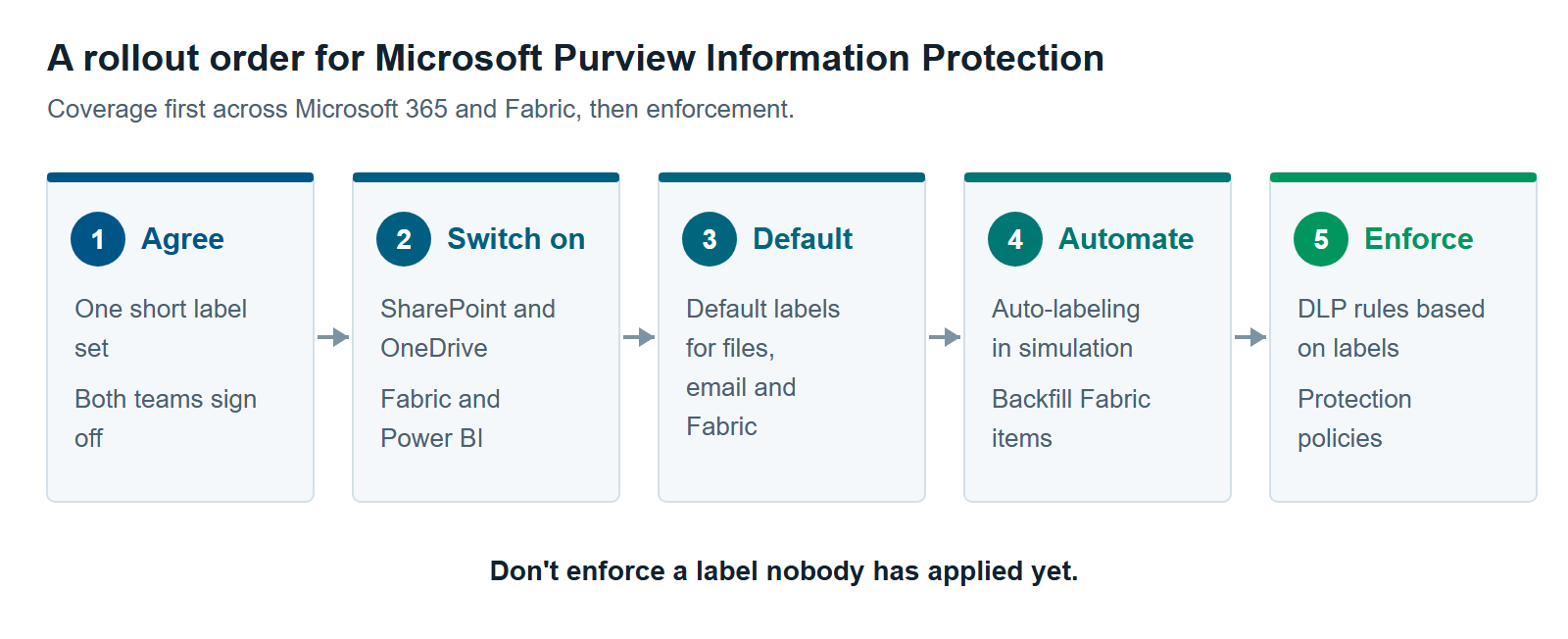
Roll out Microsoft Purview Information Protection in five steps. Get coverage first, then enforce. Enforcing a label that few items carry only creates help desk tickets.
- Agree on one short label set. Three to five labels, such as Public, General, Confidential and Highly Confidential, are easier to apply correctly. If you already label email and files, reuse those labels. Both teams sign off.
- Switch labels on everywhere. Turn on sensitivity labels for SharePoint and OneDrive. Turn on labels in the Fabric tenant settings. Turn on inheritance from data sources for Power BI. Allow up to 24 hours for new labels to reach every app (Microsoft Learn).
- Set default labels. Label policies have separate defaults for documents, email, meetings, sites and Power BI content. Set each one, so new items get labeled without anyone having to remember.
- Automate. With an E5-level license, automatic labeling can find sensitive data, like credit card numbers, and label it. It works in Office apps as people type, and in SharePoint, OneDrive and Exchange for content already saved. Run the service policies in simulation mode first (Microsoft Learn). In Fabric, use the admin APIs to label existing lakehouses and warehouses.
- Enforce. Add DLP rules based on labels. In Fabric, add protection policies, which let a label control who can open an item. Block CSV exports where the data is sensitive.
If you’re getting ready for Copilot, steps 1 to 3 matter most. Copilot respects the labels you have, not the labels you meant to apply. See Getting Ready for Microsoft 365 Copilot With Purview: Fix Oversharing Before Copilot Finds It. For where Information Protection fits with the rest of Purview, start with Microsoft Purview for Fabric: A Practical Guide to Securing and Governing Your Data.
When One Label Set Isn’t the Right Starting Point
One label set across Microsoft 365 and Fabric isn’t always the first move. In four cases, a smaller or different start makes more sense.
- Your current label set is too long. If people already pick from a dozen labels, extending that list to Fabric spreads the confusion. Simplify the labels first.
- You need column-level control. A label applies to a whole Fabric item, such as a lakehouse. It doesn’t mark single columns. If you need to hide a salary column from some users, use row-level and column-level security in Fabric too.
- Fabric holds no regulated data yet. Say one team owns your Fabric data and none of it is personal or regulated. A default label and manual labeling, both included with Microsoft 365 E3, may be enough for now. Add automatic labeling and protection policies when sensitive data arrives or an auditor asks.
- Most of your files live outside Microsoft 365. Labels work best where Microsoft apps can read them. If your email and files sit in another suite, the “classify once” benefit shrinks. You’d label Fabric data and little else.
Labels also don’t replace permissions. A label tells people what’s sensitive. Fabric workspace roles and SharePoint permissions still decide who gets in, unless you add protection policies or encryption.
A useful first check is how your Fabric tenant settings stand today. The anti-pattern of never reviewing them appears in The 12 Most Common Microsoft Fabric Anti-Patterns We See Across Every Assessment. Our Microsoft Fabric consulting and Microsoft Copilot consulting teams can help you plan Microsoft Purview Information Protection across both sides.
Further reading
- Microsoft Purview Information Protection — the full list of capabilities
- Learn about sensitivity labels — scopes, policies and default labels
- Information protection in Fabric — which labeling features work for which Fabric items
- Copilot and sensitivity labels — how Copilot reads labels and encryption
Pavan Malpani is the Fabric Practice Delivery Lead at XTIVIA. Talk to us.