By Pavan Malpani, Fabric Practice Delivery Lead, XTIVIA
Last reviewed: October 26, 2026
SUMMARY:
- Purview DLP for Fabric scans semantic models, lakehouses, warehouses and Fabric databases for sensitive data. It can show a policy tip, alert your security team or restrict access.
- It checks an item only when it’s published, refreshed or its data changes, and in Fabric items it reads only Delta tables. Lakehouse files, reports, notebooks and DirectQuery models are out of scope.
- Restricting access to “all users” still leaves workspace admins in. Everyone else can lose access, including engineers and the service principals that run mirroring.
- Start in simulation mode on a few workspaces, then turn on tips and alerts, then restrict guests. Restrict everyone only where the data truly needs it.
Table of Contents
- What Is Purview DLP for Fabric?
- Which Fabric Items Purview DLP for Fabric Covers
- How Policy Tips and Restrict Access Work
- What Purview DLP for Fabric Won’t Catch
- How to Avoid Locking Out Your Own Engineers
- What You Need Before You Turn It On
- A Rollout Order for Purview DLP for Fabric
- When DLP Isn’t the Right Tool
What Is Purview DLP for Fabric?
Purview DLP for Fabric is a set of policies that look inside your Fabric data for sensitive information, such as credit card or Social Security numbers. When a policy finds a match, it can warn the item’s owner, alert your security team or block access to the item. Your compliance team writes the policies in Microsoft Purview, Microsoft’s data security and governance product.
Data loss prevention (DLP) is the same family of controls many companies already use for email and SharePoint. Fabric is one more place those policies can reach. A policy looks for two kinds of conditions: sensitivity labels, and sensitive info types (Microsoft Learn). A sensitive info type is a pattern Purview knows how to spot, like a passport number or a bank account number.
When a policy matches, it can take up to three actions:
- Policy tip. A notice on the item tells its owner what was found and what to do.
- Alert. The match shows up on the DLP Alerts page in the Microsoft Purview portal. Admins and named users can also get an email.
- Restrict access. Fabric blocks people from the item until someone fixes the data or overrides the policy.
Which Fabric Items Purview DLP for Fabric Covers
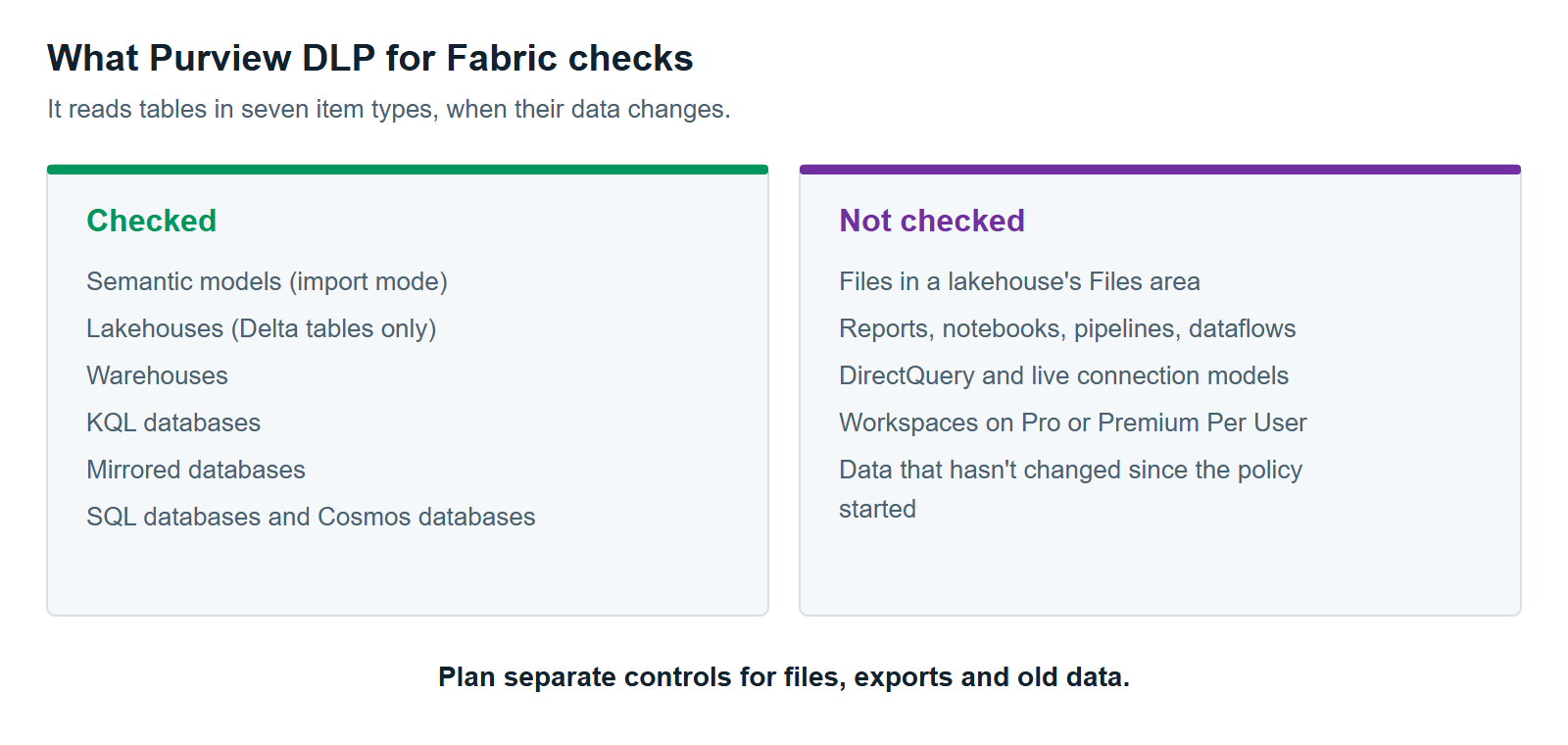
Purview DLP for Fabric covers seven item types today. They are semantic models, lakehouses, warehouses, KQL databases, mirrored databases, SQL databases and Cosmos databases. A semantic model is the layer of tables and measures that Power BI reports are built on.
Reports, dashboards, notebooks, pipelines and dataflows aren’t on the list. DLP doesn’t scan them directly. A report is covered only through the semantic model underneath it.
The policy also has to reach the workspace. Policies apply to workspaces on Fabric or Premium capacities only. Workspaces on Pro or Premium Per User licenses aren’t covered. By default a policy covers every workspace, but you can include or exclude specific ones.
Timing differs by item type:
| Item type | When DLP checks it |
|---|---|
| Semantic models | On publish, republish, scheduled refresh and on-demand refresh |
| Lakehouses, warehouses and Fabric databases | When the data inside changes, such as new data, a new table or an updated table |
How Policy Tips and Restrict Access Work
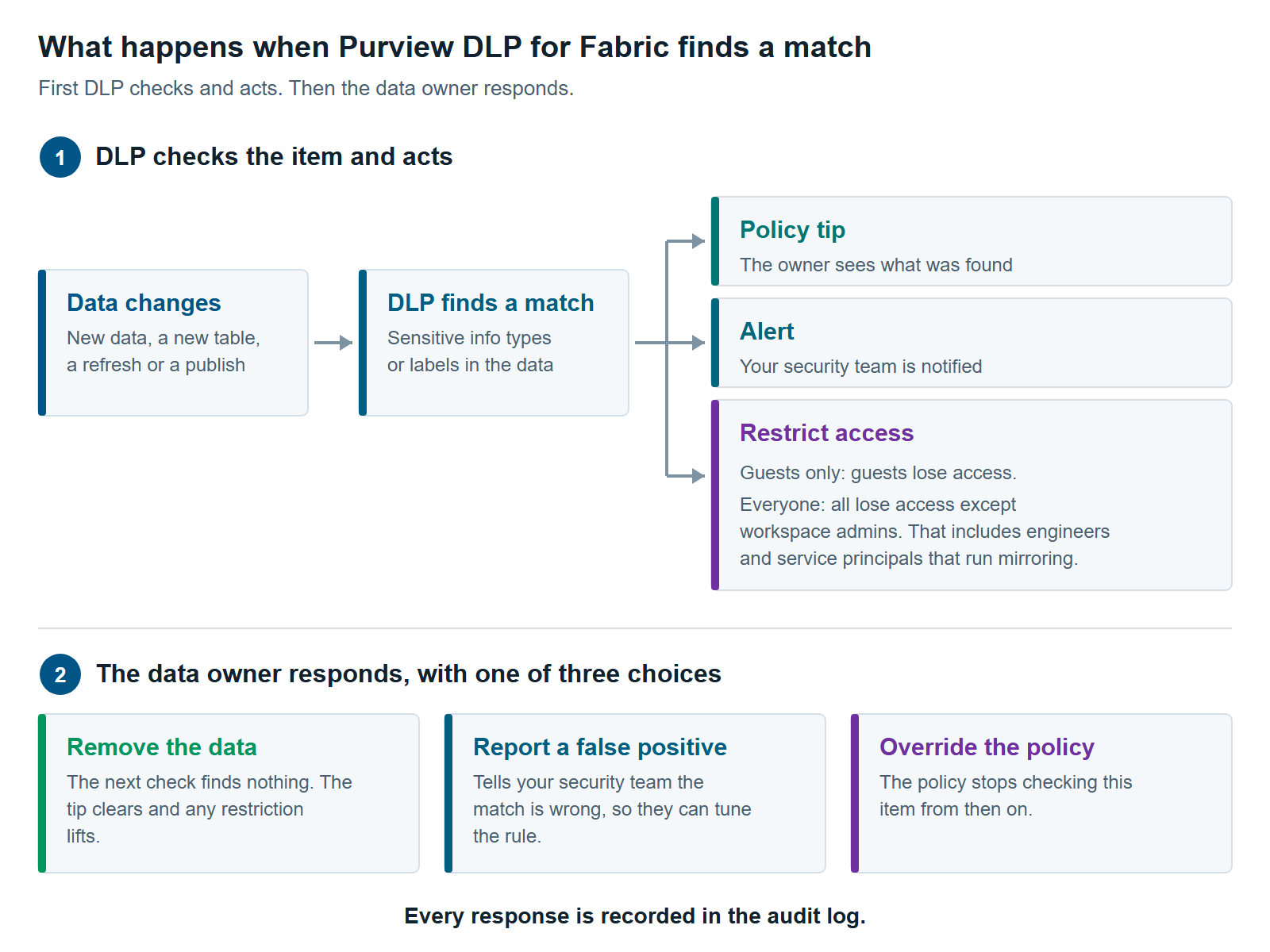
A policy tip warns, and restrict access blocks. Both start the same way. DLP checks the item, finds a match and, if user notifications are on, marks it with an icon in the workspace list and the OneLake catalog. The owner can open a side panel to see what was found and respond (Microsoft Learn).
Policy tips. A tip changes nothing about access. It tells the owner what kind of sensitive data the scan found. The owner then has three choices. They can remove the data, report a false positive, or override the policy. Removing the data clears the tip the next time DLP checks the item.
Restrict access. You choose one of two scopes when you set it up:
- People outside your organization. Guest users lose access. Internal users keep it.
- Everyone. All users lose access except workspace admins, who keep it so they can fix the data (Microsoft Learn).
“Outside your organization” means guest accounts in Microsoft Entra ID. An external person set up as a member of your tenant counts as internal.
Restrict access was in preview for semantic models and lakehouses for some time. Microsoft announced it as generally available in its September 2026 Fabric update. Microsoft’s Message Center notice MC937920 puts the rollout between late October and late November 2026. Check which item types it covers in your tenant before you rely on it.
Overrides. When you turn on restrict access, user overrides are on automatically. You can require a business justification. Every override and false-positive report goes into the audit log. But an override has a cost. From then on, the policy stops checking that item.
What Purview DLP for Fabric Won’t Catch
Purview DLP for Fabric won’t catch sensitive data it never reads, and it reads less than its name suggests. Most of the limits below come from Microsoft’s own considerations and limitations list; the rest come from how Microsoft says DLP checks items. None of them are bugs. Each one tells you where to add another control.
| What it misses | Why |
|---|---|
| Files in a lakehouse’s Files area, such as CSV or JSON uploads | DLP reads only data in Delta tables |
| Data that hasn’t changed since the policy started | Fabric items are checked when their data changes |
| DirectQuery, live connection and mixed-mode semantic models | Only import-mode models are supported |
| Semantic models owned or refreshed by a service principal | Those events don’t trigger a check |
| Exact data match, trainable classifiers, credentials and named entities | These advanced classifiers aren’t supported. A policy that uses them returns no results for them |
| Some column types, such as binary, struct, array, map and JSON | These Delta types aren’t scanned |
| Data someone exports or copies out | DLP marks and blocks the item, not the copy |
Two of these matter most for a buyer.
The change-based check. A table loaded last year and never touched isn’t checked until its data changes. Turning on a policy is not the same as scanning everything you already have.
Exports. DLP doesn’t follow data after it leaves the item. Sensitivity labels do that job. A labeled export to Excel keeps its label and encryption. A CSV export doesn’t. See Sensitivity Labels in Microsoft Fabric: How Inheritance Really Works.
How to Avoid Locking Out Your Own Engineers
Engineers get locked out when a policy restricts access for everyone and they aren’t workspace admins. Microsoft keeps workspace admins in so that someone can fix the data. Contributors and viewers can lose access until the data is removed or the policy is overridden.
Service principals are an easy case to miss. A service principal is an app identity that runs jobs without a person signed in. Mirrored databases are usually kept up to date by one. Microsoft’s own troubleshooting guide points out that these identities are rarely workspace admins. So a restrict access match can block the identity that keeps the mirror running.
Five habits keep the risk low:
- Simulate first. Purview’s simulation mode shows what a policy would match, without enforcing it. Fabric and Power BI content is checked in real time as it’s uploaded. Results are kept for 30 days (Microsoft Learn).
- Start with a pilot. Include a few workspaces in the policy instead of the default, which is every workspace.
- Block guests before everyone. The guests-only scope blocks people outside your organization without touching internal teams.
- Know your workspace admins. Each workspace with restrict access set to everyone needs at least one admin who can fix data quickly.
- Plan for mirroring. Before you restrict a workspace with mirrored databases, decide who will exclude a flagged table and clean the data.
When an engineer reports a missing item, the workspace admin opens the item’s Manage permissions page. A setting of “User is blocked” means an organization-wide policy is the cause.
What You Need Before You Turn It On
Purview DLP for Fabric needs a qualifying Purview license for the admins who write the policies, and an Azure subscription for billing. The admin who sets up the rules needs one of four licenses. They are Microsoft 365 E5, E5 Compliance, E5 Information Protection & Governance, or Purview capacities (Microsoft Learn).
DLP for Fabric is also billed pay-as-you-go. Microsoft counts each item in the scope of a policy, every day, whether or not it matches (Microsoft Learn). Microsoft’s own example is 10 workspaces with 50 items each, where a policy covers five of them. That counts as 250 items. Pay-as-you-go billing needs your Microsoft 365 tenant linked to an active Azure subscription. Microsoft also notes that DLP checks use Fabric capacity.
So scope matters twice. A narrow scope means fewer surprises for engineers and a smaller bill. Our pricing guide, Microsoft Purview Pricing for Fabric: What You’ll Actually Pay, covers the meters in more detail.
Two setup rules catch people out. Fabric DLP policies must use the Custom policy template, because no other templates are supported. And admin units aren’t supported, so you can’t hand one business unit its own Fabric DLP policies through admin units.
A Rollout Order for Purview DLP for Fabric
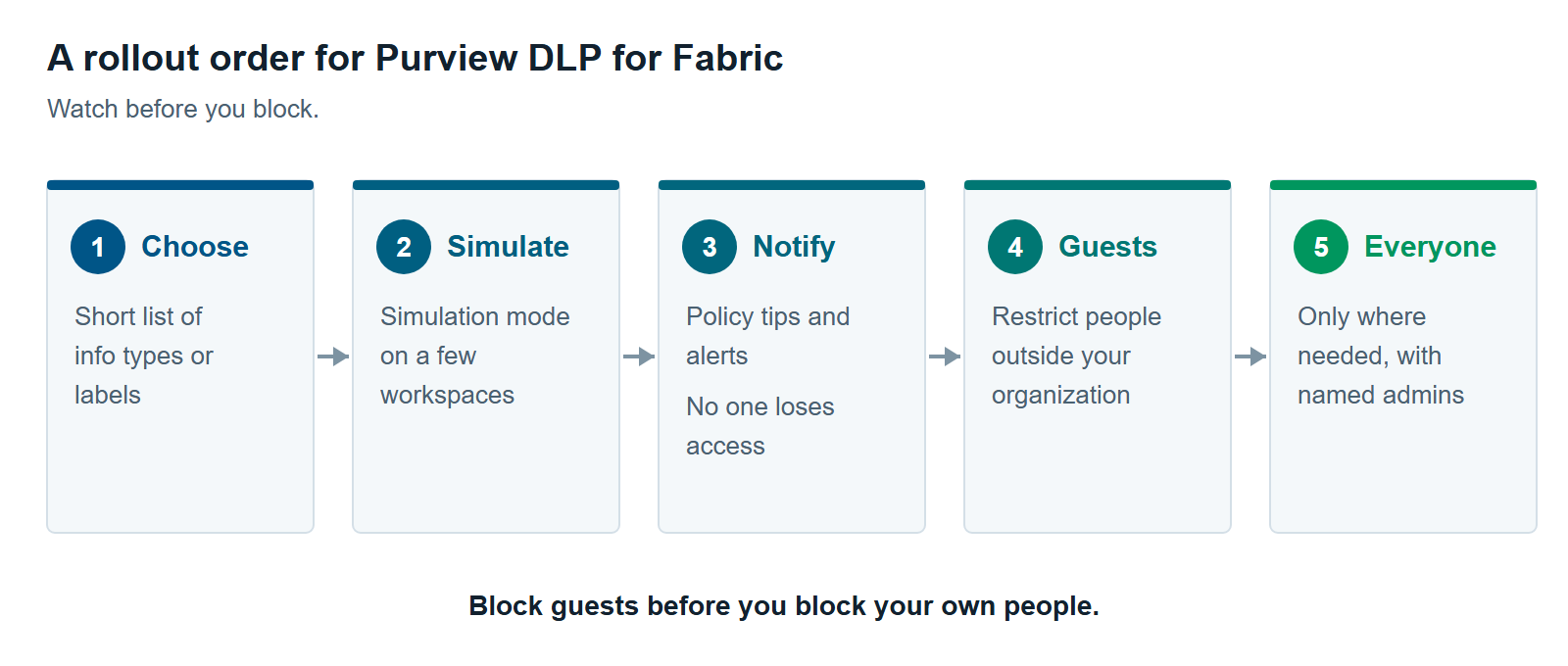
Roll out Purview DLP for Fabric in five steps, from watching to blocking. Each step gives you evidence for the next. Not every workspace needs step five.
- Pick what to look for. Choose a short list of sensitive info types or labels that matter to your business, such as customer IDs or “Highly Confidential.”
- Simulate on a pilot. Run the policy in simulation mode on a few workspaces. Review what it matches and tune out false positives.
- Turn on tips and alerts. Owners see what was found. Your security team sees the alerts. Nobody loses access yet.
- Restrict guests. Block people outside your organization from items with sensitive data.
- Restrict everyone, selectively. Use this only on workspaces where the data truly needs it, with named workspace admins and a plan for service principals.
DLP sits alongside labels in Microsoft Purview for Fabric: A Practical Guide to Securing and Governing Your Data. Our Microsoft Fabric consulting team can help you scope and test the first policies.
When DLP Isn’t the Right Tool
DLP isn’t the right tool when your problem is who has access, not what the data contains. If too many people sit in your workspaces, DLP will flag the data but won’t fix the access model. Start with workspace roles and OneLake security. Tenant settings that were never reviewed are often the better first fix. That anti-pattern is #7 in The 12 Most Common Microsoft Fabric Anti-Patterns We See Across Every Assessment.
Use a different control in these cases:
- You need protection that travels with exported files. Use sensitivity labels and block unsupported export formats.
- You need control based on a label, not on content. Protection policies let a label decide who can open an item, with no scan needed.
- You worry about people, not patterns. Insider Risk Management watches behavior. Its quick policy for data theft from non-Microsoft 365 apps covers Microsoft Fabric, and looks for users who are leaving your organization (Microsoft Learn). See Insider Risk Management for Fabric: Catching Data Theft in Lakehouses and Power BI.
You can also wait. Say your Fabric data holds no regulated or customer data and only internal staff use it. Then labels and good workspace access may be enough for now. Add Purview DLP for Fabric when sensitive data arrives, guests join, or an auditor starts asking.
Further reading
- Get started with DLP for Fabric and Power BI — supported items, actions and limitations
- Configure DLP policies for Microsoft Fabric — licensing, scope, restrict access and overrides
- Troubleshoot issues with restricted access — who keeps access and how to unblock users
- Learn about Microsoft Purview billing models — how Fabric DLP is metered
Pavan Malpani is the Fabric Practice Delivery Lead at XTIVIA. Talk to us.