SUMMARY:
- Sensitivity labels in Microsoft Fabric pass from item to item automatically, but only along certain paths. On its own, a label protects data only when it leaves Fabric in a supported format.
- A lakehouse doesn’t inherit a label from the database it loads from, so label data where it lands in Fabric.
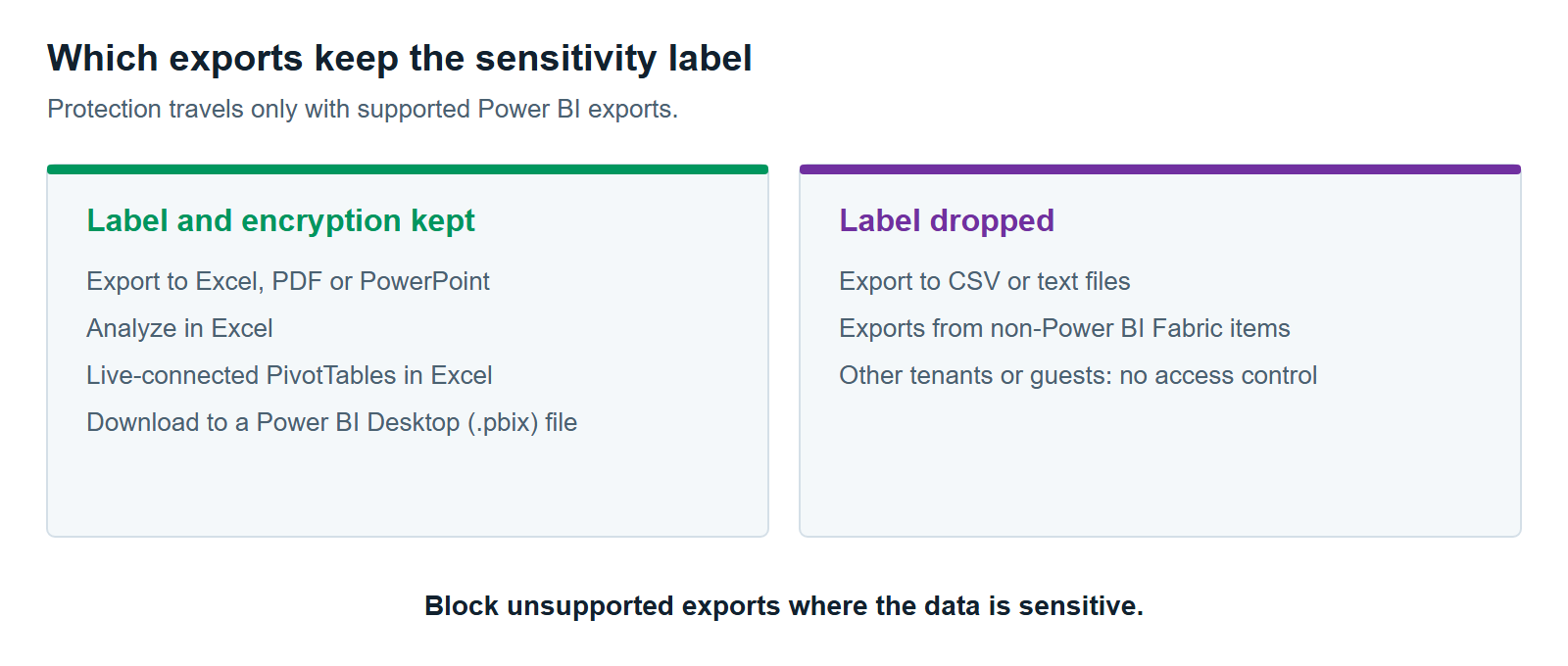
- Exports to Excel, PDF, PowerPoint images, and Power BI Desktop files keep the label and its encryption. CSV exports don’t.
- A default label, mandatory labeling, and the admin label APIs close most gaps. Blocking unsupported exports, protection policies and data loss prevention close most of what’s left.
Table of Contents
- What Are Sensitivity Labels in Microsoft Fabric?
- Following One Label From Source to Excel
- Where Sensitivity Labels in Microsoft Fabric Stop Protecting Data
- How Default Labels, Mandatory Labeling and the Label APIs Close the Gaps
- How to Roll Out Sensitivity Labels in Microsoft Fabric
- When Labels Alone Aren’t Enough
What Are Sensitivity Labels in Microsoft Fabric?
Sensitivity labels in Microsoft Fabric are tags such as “Confidential” that tell people and systems how to handle a Fabric item. You can label every item, from lakehouses to reports. The labels come from Microsoft Purview, Microsoft’s data security and governance product, so Fabric uses the same labels as Word, Outlook and SharePoint (Microsoft Learn). You can’t create labels in Fabric. Your security or compliance team creates them in the Microsoft Purview portal and publishes them to users. Fabric applies them.
Inside Fabric, a label is mostly a signal. On its own, it doesn’t change who can open an item. Fabric permissions still decide that. The label’s encryption kicks in only when data leaves through a supported export, such as an Excel file (Microsoft Learn). A separate feature, covered later, can also make the label control access inside Fabric.
Labels earn their keep in three ways. People see how sensitive an item is. Exported files stay encrypted. Other tools, like data loss prevention, can act on the label.
What you need. Labels require a Microsoft Purview Information Protection license, typically through Microsoft 365 E3 or E5. Anyone applying labels to Power BI items also needs a Power BI Pro or Premium Per User license (Microsoft Learn).
Following One Label From Source to Excel
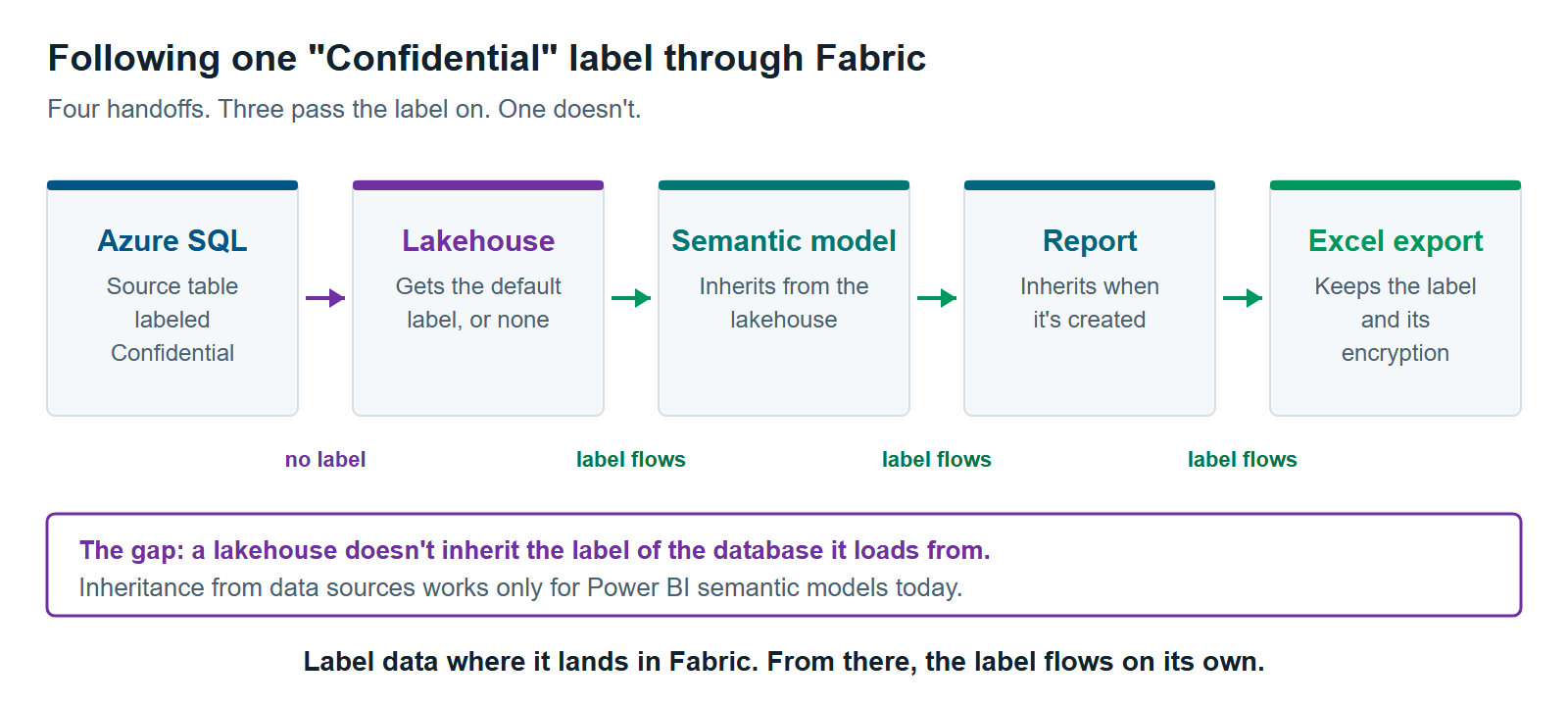
A label can follow data from its source all the way to a spreadsheet. But it hands off at four points, and each one has its own rule. Here is what happens to a customer table labeled “Confidential” in Azure SQL Database as it moves through Fabric.
1. Source to lakehouse. The label doesn’t carry over. Fabric copies the rows into a lakehouse, but the lakehouse doesn’t inherit the source label. Inheritance from data sources works only for Power BI semantic models today (Microsoft Learn). A semantic model is the layer of tables and measures that reports are built on. The lakehouse gets whatever label someone applies, or the default label if you’ve set one.
2. Lakehouse to semantic model. The label flows down. This is called downstream inheritance: a label on one item passes to the items built from it. It works from Fabric item to Fabric item, and from Fabric item to Power BI item. Items Fabric creates automatically with a lakehouse, such as its SQL analytics endpoint, take the lakehouse’s label too.
3. Semantic model to report. A new report built on a labeled semantic model gets the same label when it’s created. If someone later changes the model’s label, existing reports follow it under downstream inheritance (Microsoft Learn).
4. Report to Excel. The label leaves Fabric with the data. Export to Excel, and the file carries “Confidential” plus any encryption the label applies. Only people the label allows can open it. Analyze in Excel, and live-connected PivotTables keep the label too (Microsoft Learn).
Two rules apply at every automatic step. An inherited label never replaces one a person applied by hand. And it never replaces a stricter label with a weaker one (Microsoft Learn).
Where Sensitivity Labels in Microsoft Fabric Stop Protecting Data
Sensitivity labels in Microsoft Fabric stop protecting data in five common places. All of them are documented limits, not bugs. Knowing them tells you where to add a second control. Each limit below comes from Microsoft’s documentation on information protection in Fabric and sensitivity labels in Power BI.
| Where it stops | What happens |
|---|---|
| CSV and text exports | The file leaves with no label and no encryption |
| Exports from non-Power BI items | No label moves to the exported file. Fabric shows a warning |
| Power BI item to Fabric item | Labels don’t flow back from a report or model into a lakehouse or notebook |
| More than 80 downstream items | Downstream inheritance skips all of them. Only the item you labeled changes |
| Guests and other tenants | Labels don’t control access for external guests, B2B users or external data sharing |
Inheritance from data sources has narrow limits too. It covers Azure SQL Database, Azure Synapse Analytics, and Excel files stored on OneDrive or SharePoint. It works only for semantic models in Import mode, not DirectQuery or live connection. It doesn’t work through a gateway or a virtual network. And a Power BI admin must turn it on (Microsoft Learn).
One setting deserves a close look. Labels a semantic model inherits from its data source pass downstream only when the admin enables fully automated downstream inheritance. In the other mode, user consent, the person changing a label decides whether it flows down. It then reaches only the items that person can edit.
How Default Labels, Mandatory Labeling and the Label APIs Close the Gaps
Three features catch most of what inheritance misses. A default label covers new items. Mandatory labeling stops people from skipping the label. The admin label APIs handle the items you already have. You set the first two in Microsoft Purview label policies, in settings separate from the ones for files and email.
Default labels. A default label is applied to new items automatically when nobody picks one (Microsoft Learn). For Power BI items, it also applies when someone edits an unlabeled item. For other Fabric items, such as lakehouses, it applies when the item is created through a normal create dialog. Editing an existing unlabeled lakehouse triggers it only when you change its name or description in the item’s flyout menu. Items created by service principals or APIs don’t get a default label either.
Mandatory labeling. With mandatory labeling on, people can’t save an item until they choose a label. Microsoft documents it as fully enforced for Power BI items only (Microsoft Learn). For lakehouses, pipelines, and warehouses, people can still save without a label. It doesn’t apply to service principals, APIs or guest users (Microsoft Learn).
The label APIs. Fabric’s admin APIs set or remove labels on up to 2,000 items per request. You can make up to 25 requests an hour. That’s how you label the backlog of items that were created before your default label existed. A Fabric administrator has to make the calls, and the label must be in that person’s label policy (Microsoft Learn).
Protection policies. A protection policy makes a label control access inside Fabric, which a label alone doesn’t do. You link a policy to a label. Then only the users and groups named in the policy keep access to items with that label (Microsoft Learn). Policies cover native Fabric items and semantic models, but not reports or dashboards. A new policy can take up to 24 hours to start working.
Tracking coverage. The OneLake catalog’s governance view shows which items are labeled and which aren’t. Every time a label is applied, changed, or removed, the audit log records it.
How to Roll Out Sensitivity Labels in Microsoft Fabric
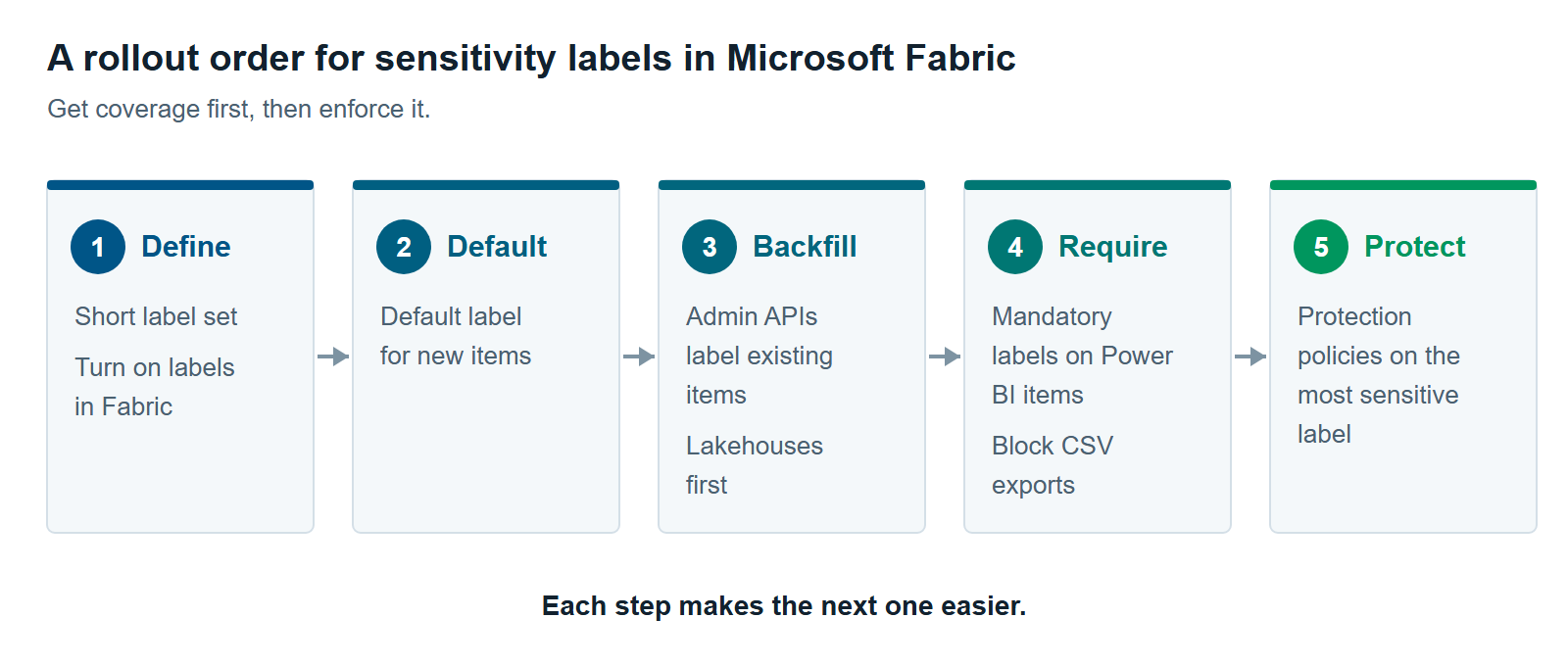
Roll out sensitivity labels in Microsoft Fabric in a set order. Start with the labels, then add automatic coverage, then fix existing items, then add enforcement. Each step makes the next one easier.
- Agree on a short label set. Your compliance team creates the labels in Microsoft Purview and publishes them to the people who’ll use them in Fabric. Three to five labels, such as Public, General, Confidential, and Highly Confidential, are easier to apply correctly than a long list. If your organization already labels email and files, reuse those labels.
- Turn on labels for Fabric. A Fabric admin turns on the tenant setting that lets users apply labels. At the same time, decide whether downstream inheritance should be fully automated.
- Set a default label for Fabric and Power BI content. New items get labeled without anyone having to remember.
- Label what already exists. Use the admin APIs to label lakehouses and warehouses first, then check that the items built on them picked up the label.
- Require labels on Power BI items. Mandatory labeling stops unlabeled reports and models from being saved.
- Close the export gap. Block CSV and other unsupported exports where the data is sensitive.
- Add protection policies for your most sensitive label. That label then controls who can open the item, not just how it’s marked.
Labels are the base layer of Microsoft Purview for Fabric: A Practical Guide to Securing and Governing Your Data. To see how the same labels work across email, files, and Fabric, read One Label From Email to Lakehouse: Purview Information Protection Across Microsoft 365 and Fabric. Our Microsoft Fabric consulting team can help you plan the rollout.
When Labels Alone Aren’t Enough
Labels alone aren’t enough when you need to stop data from moving, not just mark it. A label tells people what’s sensitive. It doesn’t find sensitive data that nobody labeled. Without a protection policy, it doesn’t stop an authorized user from copying the data elsewhere.
Add another control in these cases:
- You need to find unlabeled sensitive data. Data loss prevention (DLP) checks Fabric data for things like credit card numbers. It can alert you and, for some items, restrict access. See Purview DLP for Fabric: Policy Tips, Restrict Access and What It Won’t Catch.
- People share with guests or other tenants. Labels don’t control access across tenants, so limit who can share externally.
- You’re rolling out Copilot. Exported Excel files keep their label in Microsoft 365, where Copilot honors the label’s encryption. Read Getting Ready for Microsoft 365 Copilot With Purview: Fix Oversharing Before Copilot Finds It.
You can also start smaller. Say one team owns your Fabric data and none of it is regulated. Then a default label and a short label set may be enough for now. Add mandatory labeling and protection policies when sensitive data arrives, or an auditor starts asking.
The anti-pattern of never reviewing tenant security settings, including label settings, appears in The 12 Most Common Microsoft Fabric Anti-Patterns We See Across Every Assessment. It’s a useful check on where your sensitivity labels in Microsoft Fabric stand today.
Further reading
- Information protection in Fabric — which labeling features work for which Fabric items
- Sensitivity label downstream inheritance — modes, limits and the 80-item cap
- Sensitivity labels in Power BI — supported export paths and how protection travels
- Protection policies in Microsoft Fabric — using labels to control access
Pavan Malpani is the Fabric Practice Delivery Lead at XTIVIA. Talk to us.